



Product Updates
Latest Update:
Invite friends — 30 credits on sign-up
Share your personal link. For each friend who completes sign-up, the inviter and the invitee each receive 30 credits immediately.
Invite limit & instant credit
You can invite up to 10 friends. Rewards are credited to your balance as soon as your friend registers. Credits never expire and can be used anytime.
Upgrade bonuses — bigger rewards when they subscribe
When an invited friend becomes a paying subscriber for the first time, you’ll receive bonus credits based on their plan:
Starter → +200 credits
Pro → +500 credits
Ultra → +1,000 credits
Max → +2,000 credits
Note: Bonus credits are granted only the first time an invited friend becomes a paying subscriber.
- Text Models: Added Doubao Seed 2.1 Pro and Doubao Seed 2.1 Turbo from Volcano Engine.
- Image Models: Integrated Midjourney v8.1 and Midjourney Niji v7 for superior image generation quality.
✨ Canvas Experience Optimizations
- Enhanced Annotation Tools: Image nodes now support inserting text and arrows. You can freely scale and move annotation symbols for precise feedback.
- Smart Project Resume: When you re-enter a project, Pixmax automatically opens the last edited canvas, saving you time finding your place.
- Zoom Shortcuts: Quickly zoom in/out the canvas using keyboard shortcuts: Cmd/Ctrl + "+" to zoom in and Cmd/Ctrl + "-" to zoom out.
- Connection Line Cutting: Hover over any connection line between nodes to reveal a scissors icon, which lets you instantly cut and disconnect links.
🎬 New Feature: Stage Editor (Beta)
- Precise Scene Control: Add a Stage Editor node to your canvas to precisely adjust character positioning and camera angles for generating accurate reference images.
- Intuitive 3D Logic: Operates with standard 3D software controls: Left-click to rotate, Right-click to pan, and Scroll to zoom. You can move, rotate, and scale multiple puppets freely, adjusting their position, depth, orientation, and size to visualize complex spatial relationships that are hard to describe with text.
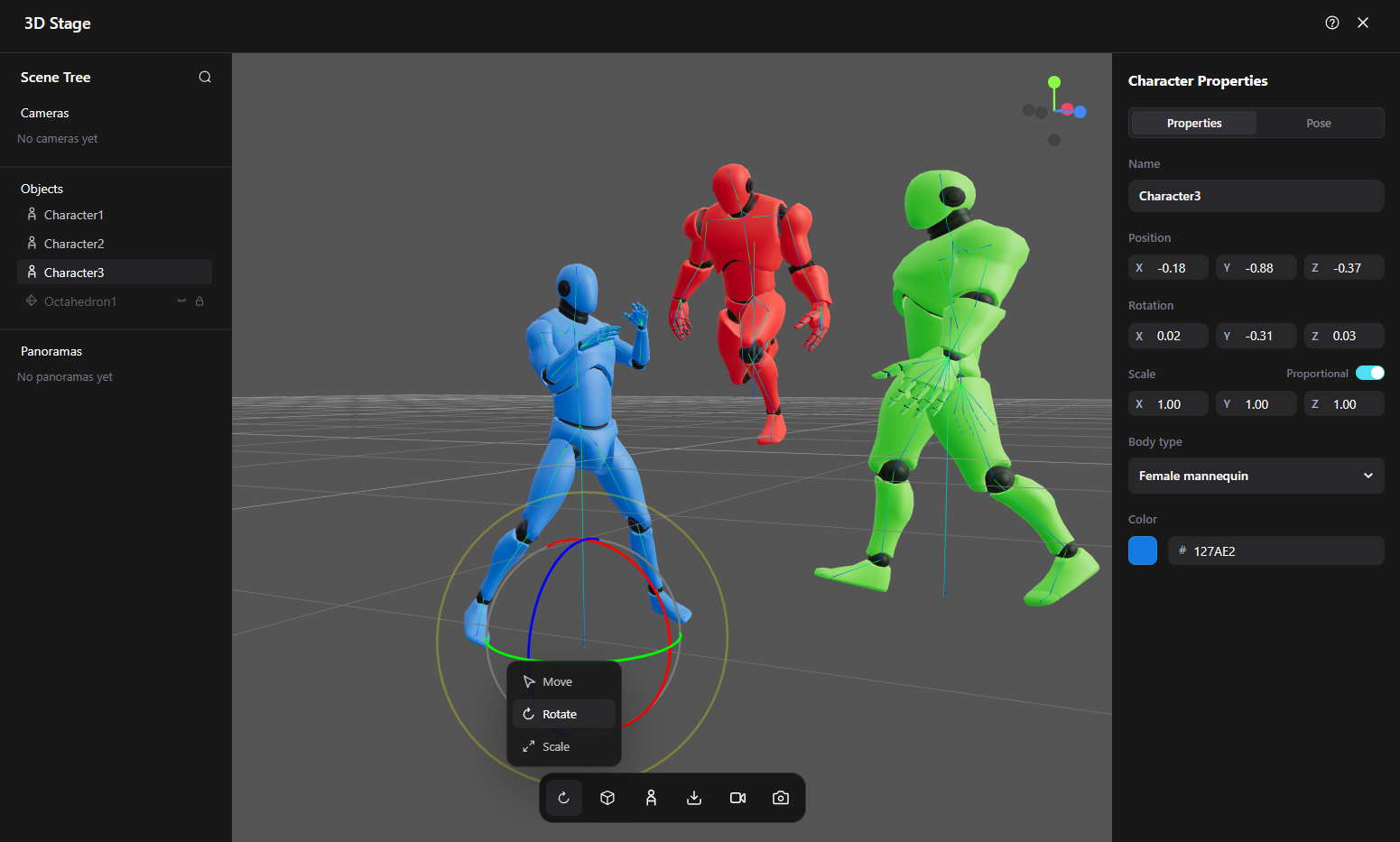
- Versatile Material Support: Supports panoramic images (automatically set as background) and generates corresponding Stage Editor nodes from 3D models within the canvas. Take snapshots directly into the canvas to serve as references for subsequent image generation.
1. HappyHorse Is Now Available
HappyHorse now supports text-to-video, image-to-video, reference-based generation, and video editing workflows.
2. Team Asset Library
Teams can now create shared asset libraries, making project-specific assets visible and reusable across members.
3. Grid Storyboard Generator
Create grid-style storyboards faster by connecting reference assets with prompt descriptions.
AI models can also help refine prompts for better storyboard consistency.
4. Frame & Node Grouping
5. Keyboard Shortcuts
1. Real-Person Asset Libraries for Seedance 2.0
Verified users can now build real-person asset libraries and use them directly in Seedance 2.0 workflows for more consistent character generation.