



Product Updates
Latest Update:
🚀 New Models
- DeepSeek 4.1 (Text): Integrated for advanced logical reasoning and prompt optimization.
- Nano Banana 2.1: Added for specialized generation tasks.
- Midjourney Edit: Supports direct image editing within the canvas.
- Seed Audio 1.0 (Voice): Integrated Doubao’s model for high-quality voice generation.
✨ Canvas Improvements
- Storyboard Asset Import: One-click import and reuse of assets in Storyboard nodes.
- Custom Outpainting: Supports specifying custom output dimensions for precise expansion.
🌍 Platform Updates
- New Languages: Added support for Korean and Spanish.
- Team Management: Enterprise admins can now batch assign members to teams from the console.
- Task History: Prompts from generation history are now copyable. Fixed an issue where canceled tasks incorrectly overrode queue status.
✨ Canvas Improvements
- External Copy-Paste: Copy images from Canvas directly to external software (e.g., Photoshop, Figma).
- Image Editing: Image nodes now support rotation and mirroring.
- Quick Add to Canvas: Add alternative results from multi-output tasks to the canvas while retaining node connections. Double-click non-primary results for full-screen preview.
- Node History: View generation history of the current node while a task is running.
⚙️ Model & Preferences
- Seedance 2.5 Draft Upgrade: Upgrades now submit through the same channel as the original sample for consistency.
- Auto-Play & Preview: Enable auto-play on hover in Preferences. Use Spacebar or Double-click to play/pause in full-screen.
- Onboarding: Streamlined new user guide interaction.
✨ Canvas Improvements
- History Restore Confirmation: Added a confirmation dialog for restoring versions, showing node details and validity to prevent accidental changes.
- Seedance 2.5 Draft Upgrade: Insert Seedance 2.5 draft videos from history and upgrade them to final quality. Expired samples (>7 days) now show clear warnings.
Seedance 2.5 now supports Draft Mode. Generate a 480P draft first, then, once you are satisfied with the result, generate the same shot in 1080P with richer detail and higher visual quality.
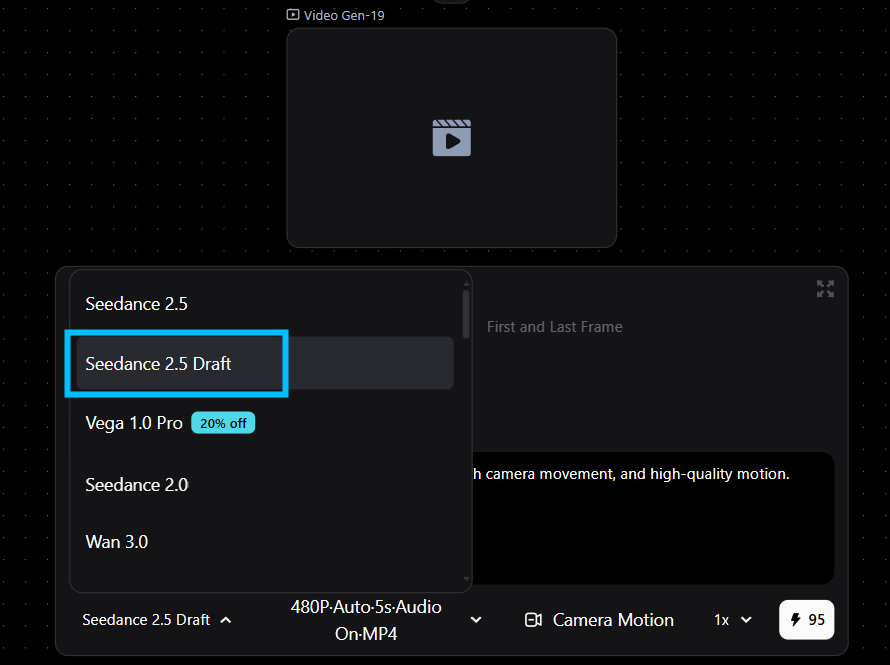
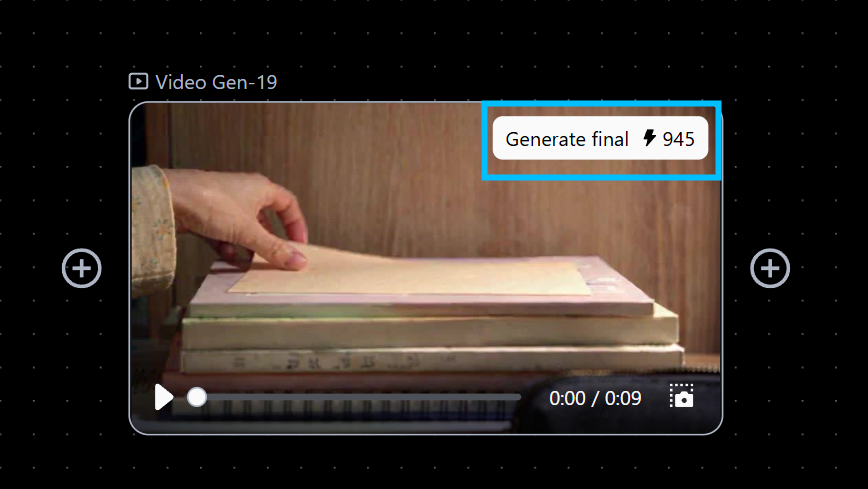
In Draft Mode, the 480P-to-1080P process is a high-spec re-render of the same shot.
By contrast, standard 480P-to-1080P Video Upscale either regenerates the video or uses the low-resolution video as a reference or for upscaling.
Because the underlying connection is different, the two workflows differ in consistency and image quality. Draft Mode delivers noticeably stronger texture and detail in the 1080P output.
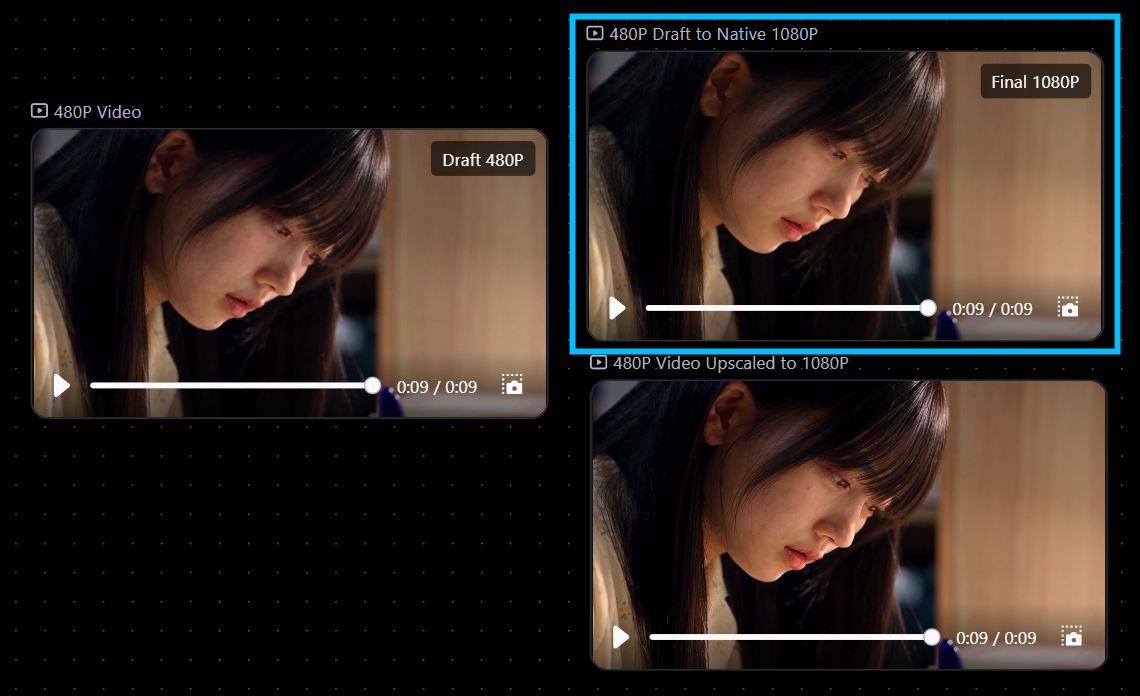
Left (480P) Top Right (Same Draft ID 1080P) Bottom Right(Video-to-Video 1080P)
Build Consistent Subjects and Expressions in Canvas
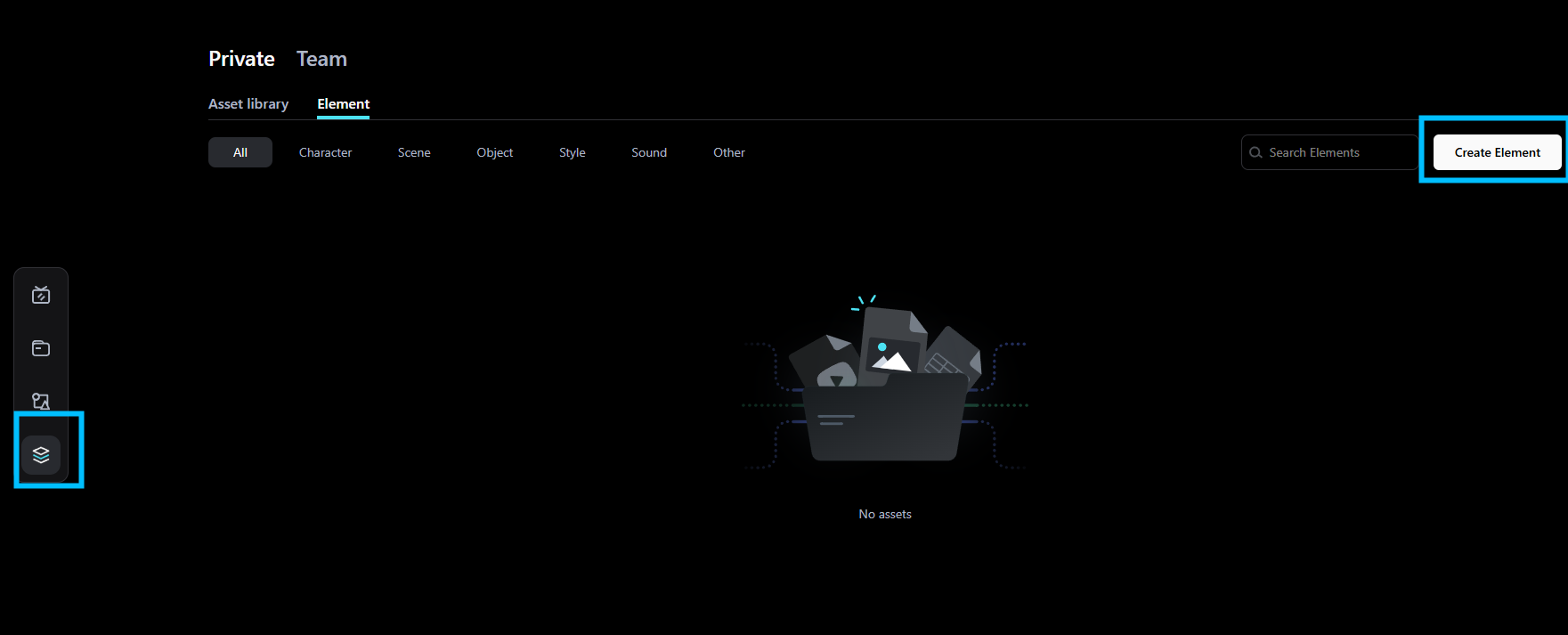
Reuse Subjects Across Your Projects
The Element helps you manage and reuse subjects across Canvas projects more consistently.
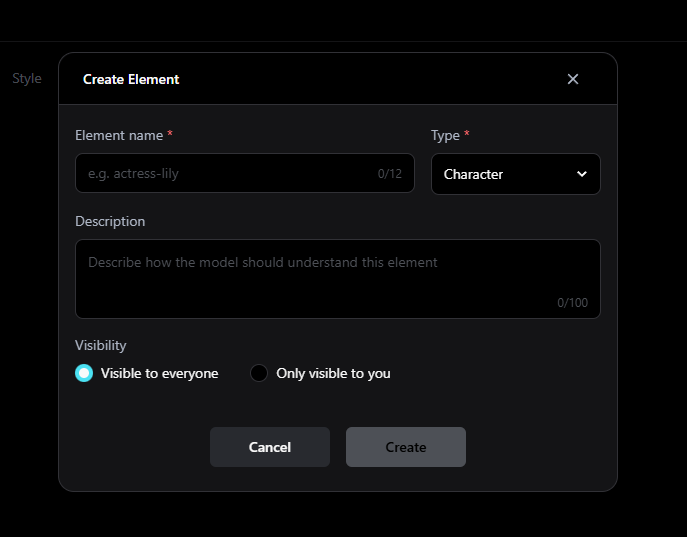
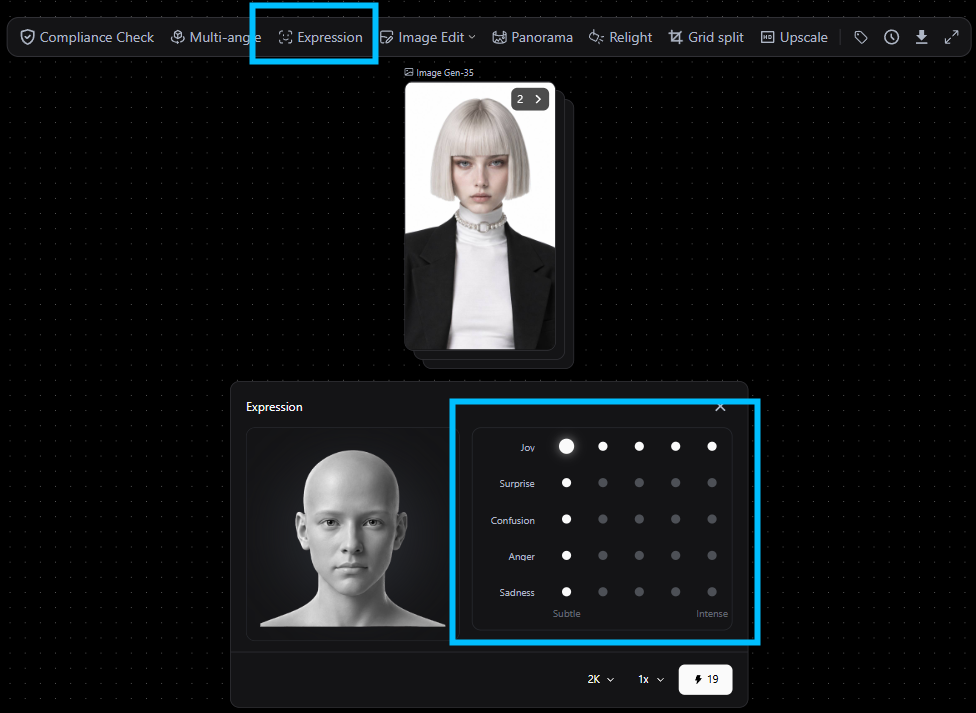
Guide Character Expressions with Reference Images
Expressions give you more control over character emotions by letting you guide facial expressions with reference images.
Unlimited Model Access Starts with Seedream 5 Pro
Eligible members can now use supported models with the new Unlimited benefit, starting with Seedream 5 Pro.
Qwen Image 3.0 Pro Is Now Available
Qwen Image 3.0 Pro is now available in Pixmax, bringing more powerful image generation into your workflow.
Clearer Credit Limit Alerts for Teams
Credit alerts now clearly show whether the limit issue comes from a sub-account, current team, or primary account.