

Quick answer:
Script-to-storyboard AI is software that automatically converts a written script into visual storyboard frames — splitting scenes, mapping shots, and generating images with camera and composition notes in minutes instead of days. The fastest route is a dedicated script-to-storyboard tool: paste or upload your script, review the auto-generated board, and refine frames until the sequence matches your intent.
If the board will feed AI video production, a full-pipeline platform like Pixmax AI Video Agent keeps characters and scenes consistent from storyboard to final clips. You can storyboard without drawing skills — but shot logic and character continuity still deserve a human review pass before you treat the board as final.
What Is Script to Storyboard AI?
Script to storyboard AI takes a screenplay, treatment, ad brief, or rough outline and produces a visual board: a sequence of frames with scene numbers, camera angles, character actions, and pacing notes. The pipeline has four stages — parse the script into scenes, identify characters and key visual beats, generate an image per shot, and assemble everything into an ordered, annotated board.
Why Turn a Script into a Storyboard with AI?
Doing the script-to-storyboard step by hand means re-reading the script, splitting it into scenes, and building every frame one at a time. A short script takes an afternoon; a full screenplay takes days. AI collapses that timeline to minutes and removes the drawing requirement entirely.
The real value, though, is not speed alone. Creators on r/aivideos describe character and set consistency as the biggest struggle in AI-assisted production — and it hits storyboards first. If the protagonist has brown hair in panel 1 and red hair in panel 5, the board fails at its core job: showing what the shots will actually look like. Script to storyboard AI fixes this by extracting characters from the script once and reusing their profiles across every panel.
The honest caveat: AI boards are a starting point, not a finished deliverable. The best results come when you treat AI as the drafter and stay the director — review shot order, framing, and continuity before the board reaches a client or crew.
6 Proven Ways to Turn a Script into a Storyboard with AI
| Method | Best for | Effort | Watch out |
|---|---|---|---|
| Full-pipeline AI video workflow (Pixmax) | Scripts that need boards, assets, and video | Low-Med | Overkill for static-only boards |
| Dedicated script-to-storyboard tools | Client review boards and shot lists | Low | Needs clean screenplay formatting |
| LLM preproduction assistant | Writers planning shots before visuals | Low | No images or continuity control |
| Image generators + character sheets | Pitch boards and style exploration | Medium | Characters may drift between frames |
| 3D previsualization for shot control | Complex blocking and camera planning | Med-High | Slow setup for each scene |
| Hybrid AI draft + manual polish | Final client or director-approved boards | High | Best quality, most manual review |
Method 1: Full-Pipeline AI Video Workflow: Pixmax
A full-pipeline AI video workflow treats the storyboard as the middle of a chain: script in, finished video out, with the board as one editable stage. Pixmax analyzes scripts up to 100,000 words, breaks them into scenes, and connects script breakdown, character design, storyboarding, generation, and refinement in one visual workflow. Because characters and scenes are bound once and reused, the consistency you plan in the board carries into the generated clips.
How to use it:
Pixmax includes a Storyboard Script node for turning a long script into production-ready shot planning.
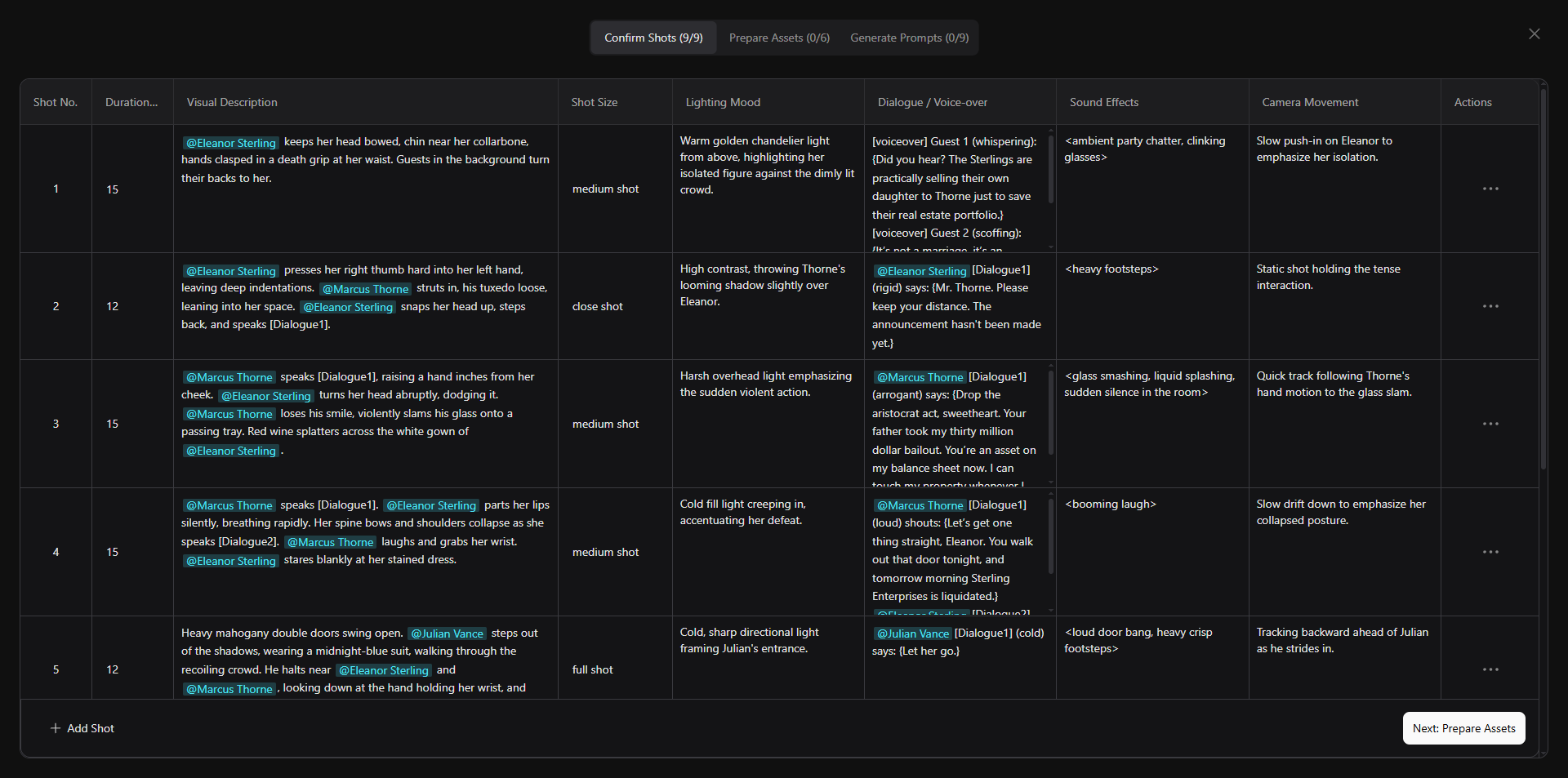
- Confirm shots: click + on the canvas, choose Storyboard Script, then select Generate a storyboard script in one click. Connect two upstream text nodes: Style and Script. In the screenshot, the style is set to Reality and the script node contains the uploaded drama script.
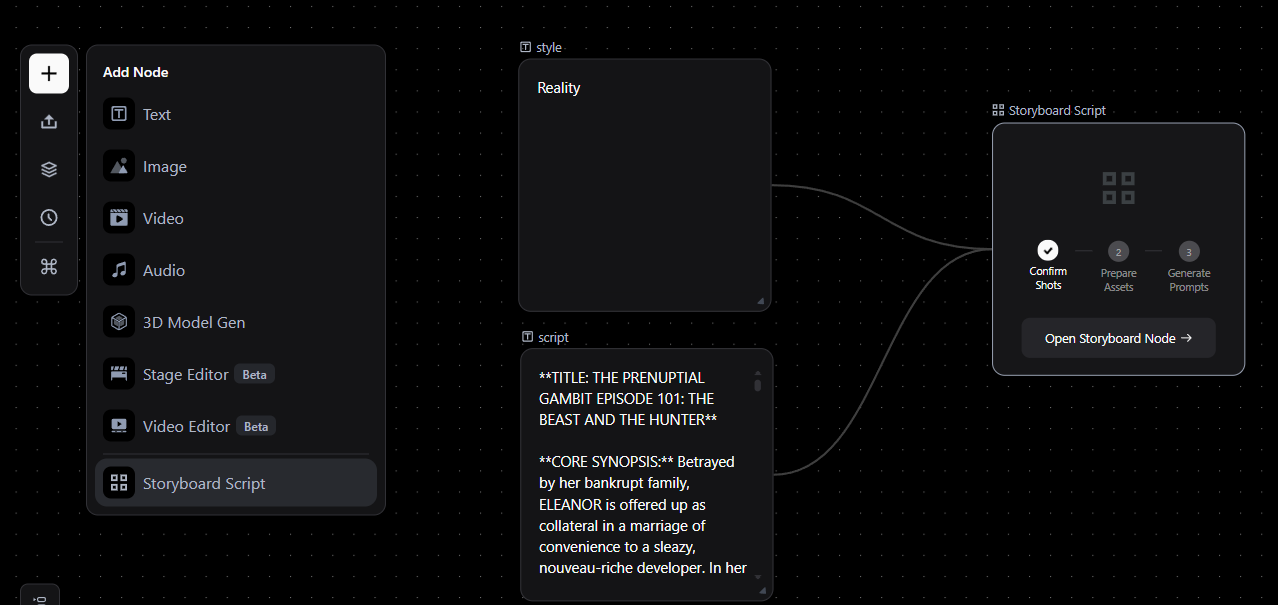
Pixmax then breaks the long script into detailed shots. Each shot can include a visual description, shot size, lighting, mood, dialogue or voice-over, sound effects, and camera movement. You can add, delete, or revise shots before moving forward, so the board becomes a practical production plan rather than a static image list.
- Prepare assets.
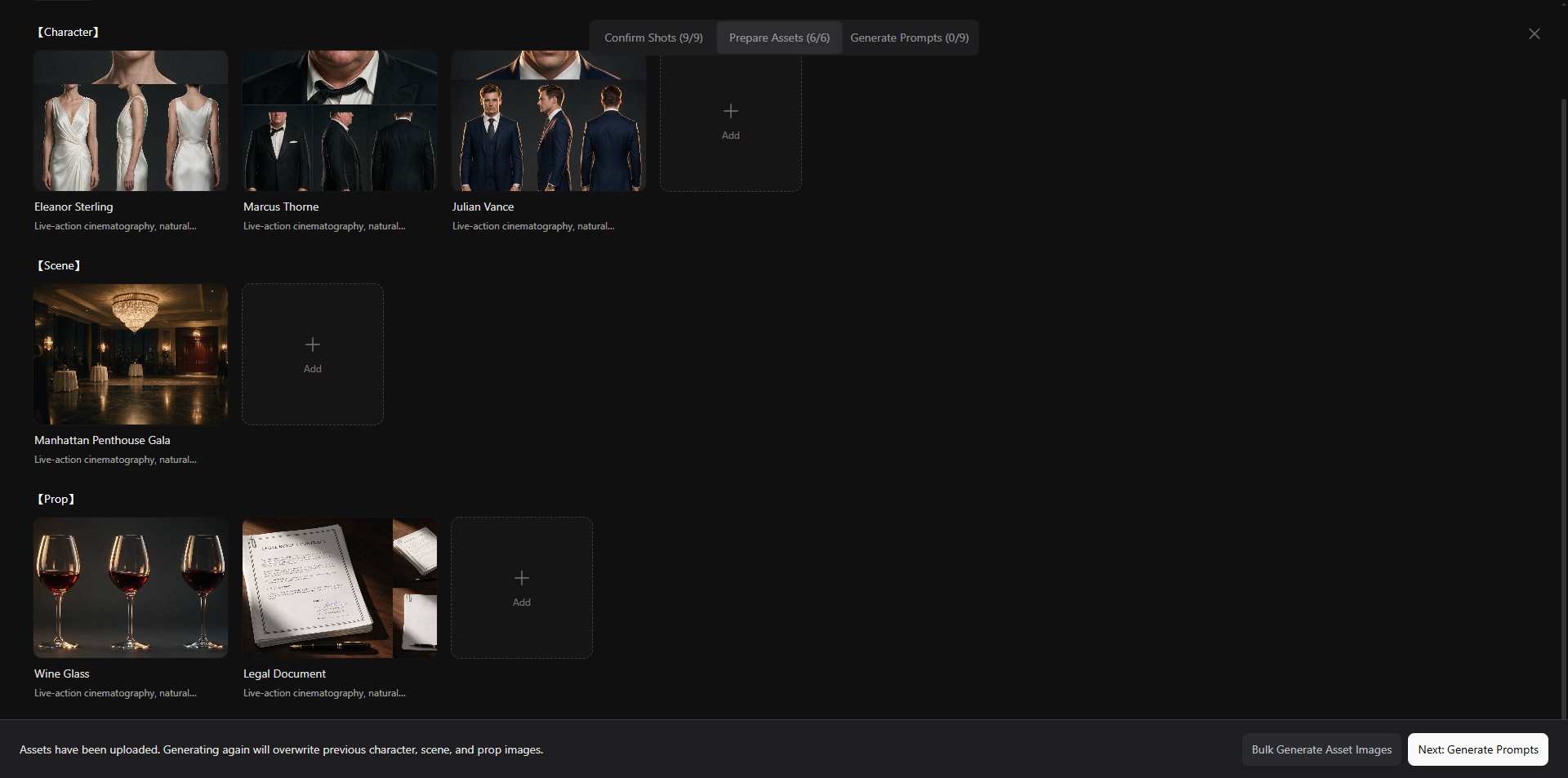
Prepare the assets Pixmax will reuse across the storyboard and video generation stages. For characters, scenes, and props, you can generate assets with AI, reuse assets already created on the canvas, or upload local references. This helps keep character identity, settings, and props consistent across multiple shots.
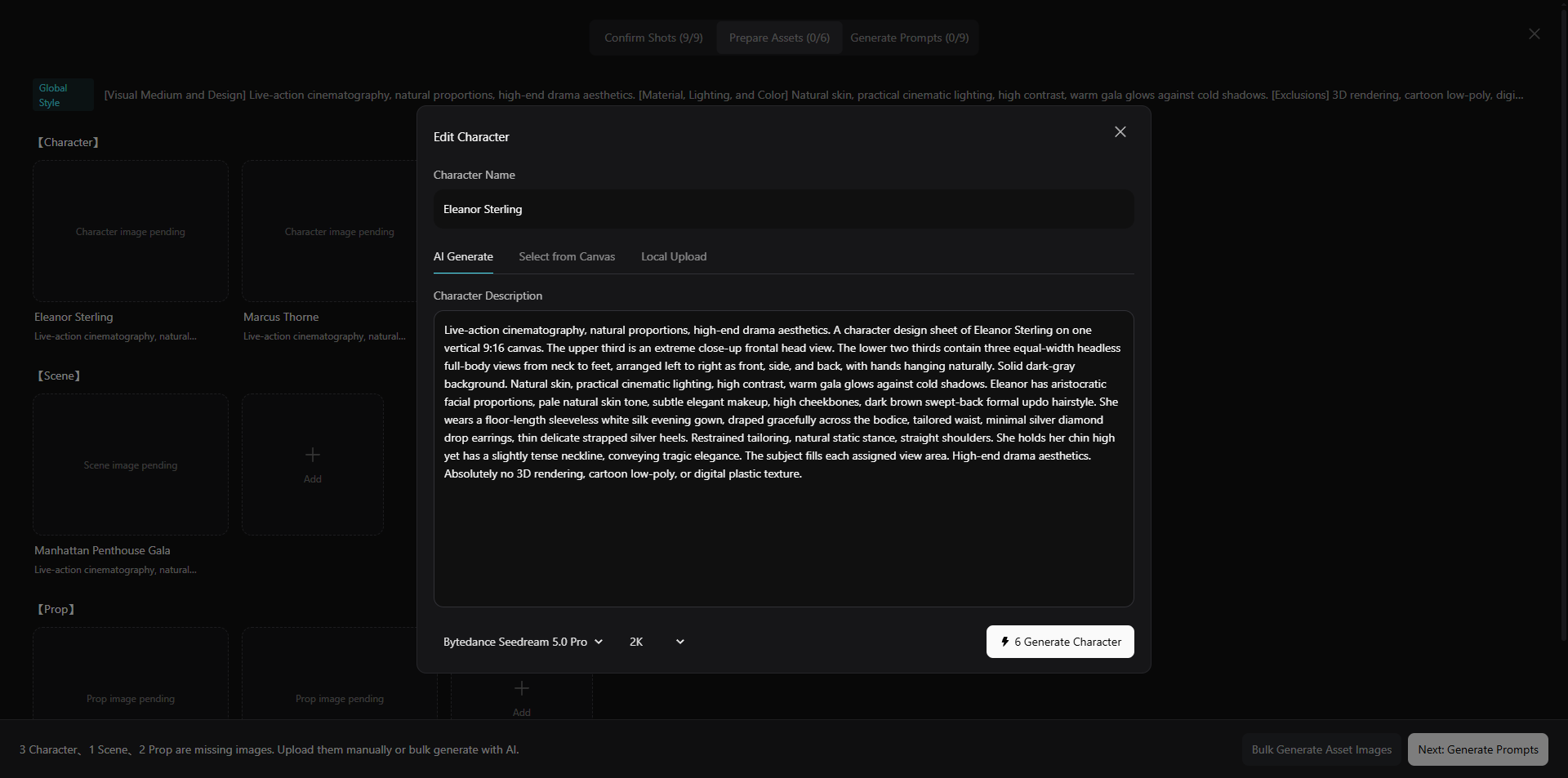
In this example, the character, scene, and prop assets are generated directly in Pixmax and then connected back to the storyboard workflow.
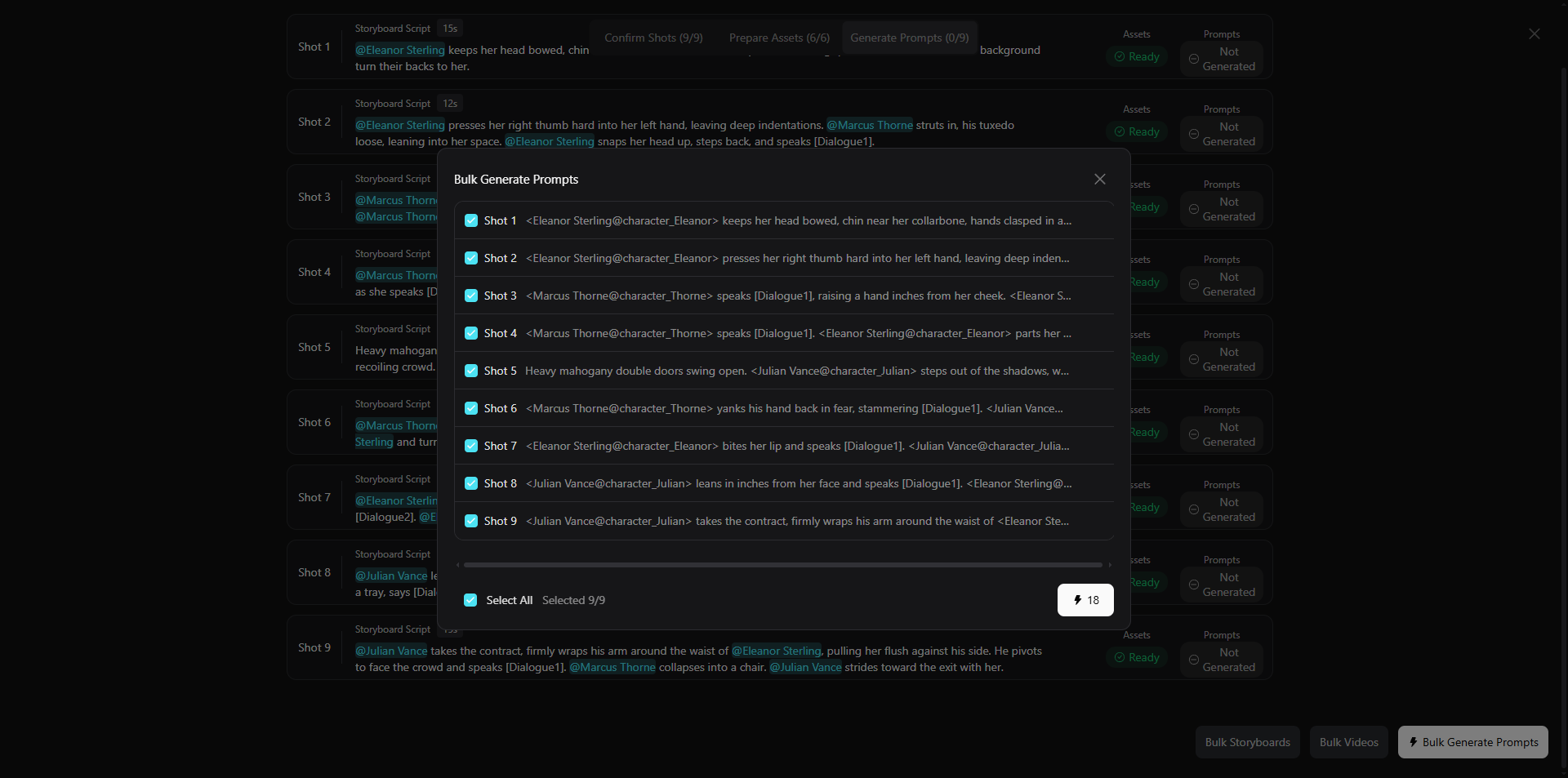
- Generate prompts: once the assets are ready, move to the prompt generation stage.
Batch-generate prompts for every confirmed shot.
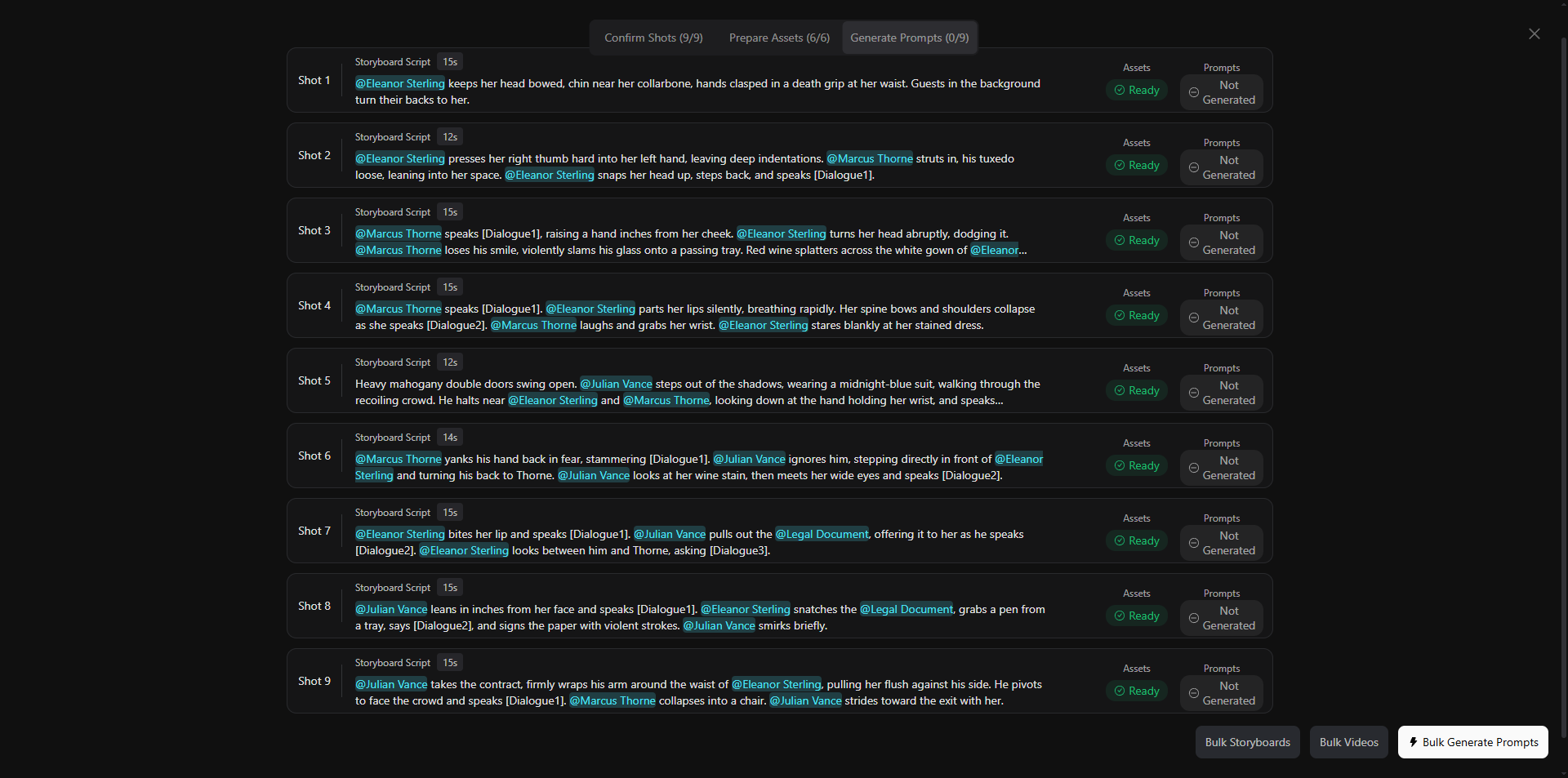
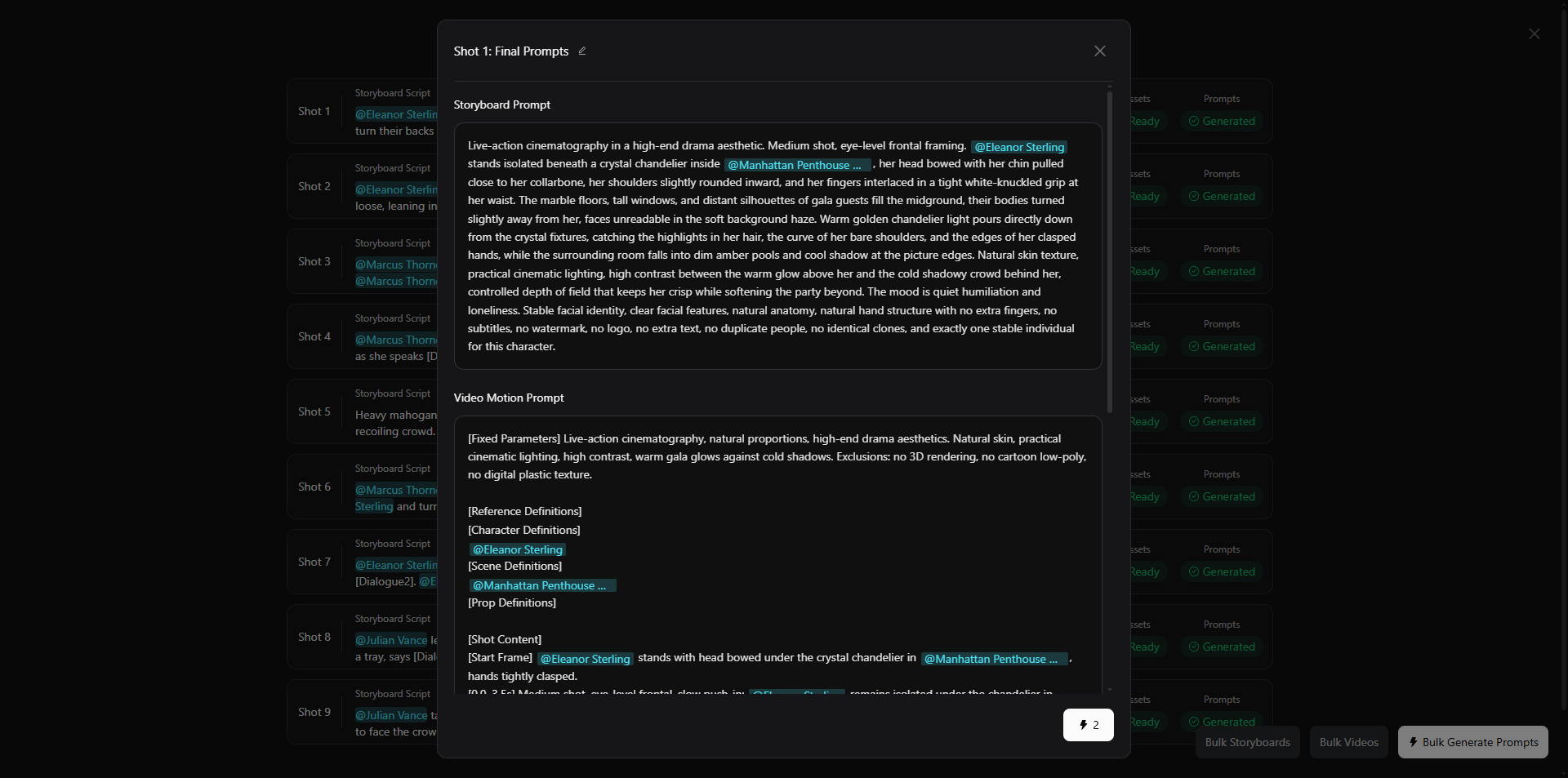
Each shot can include both a storyboard prompt for the frame and a video motion prompt for movement, camera action, and scene dynamics. This is useful when the storyboard is not the endpoint: the same planning data can feed the video generation step.
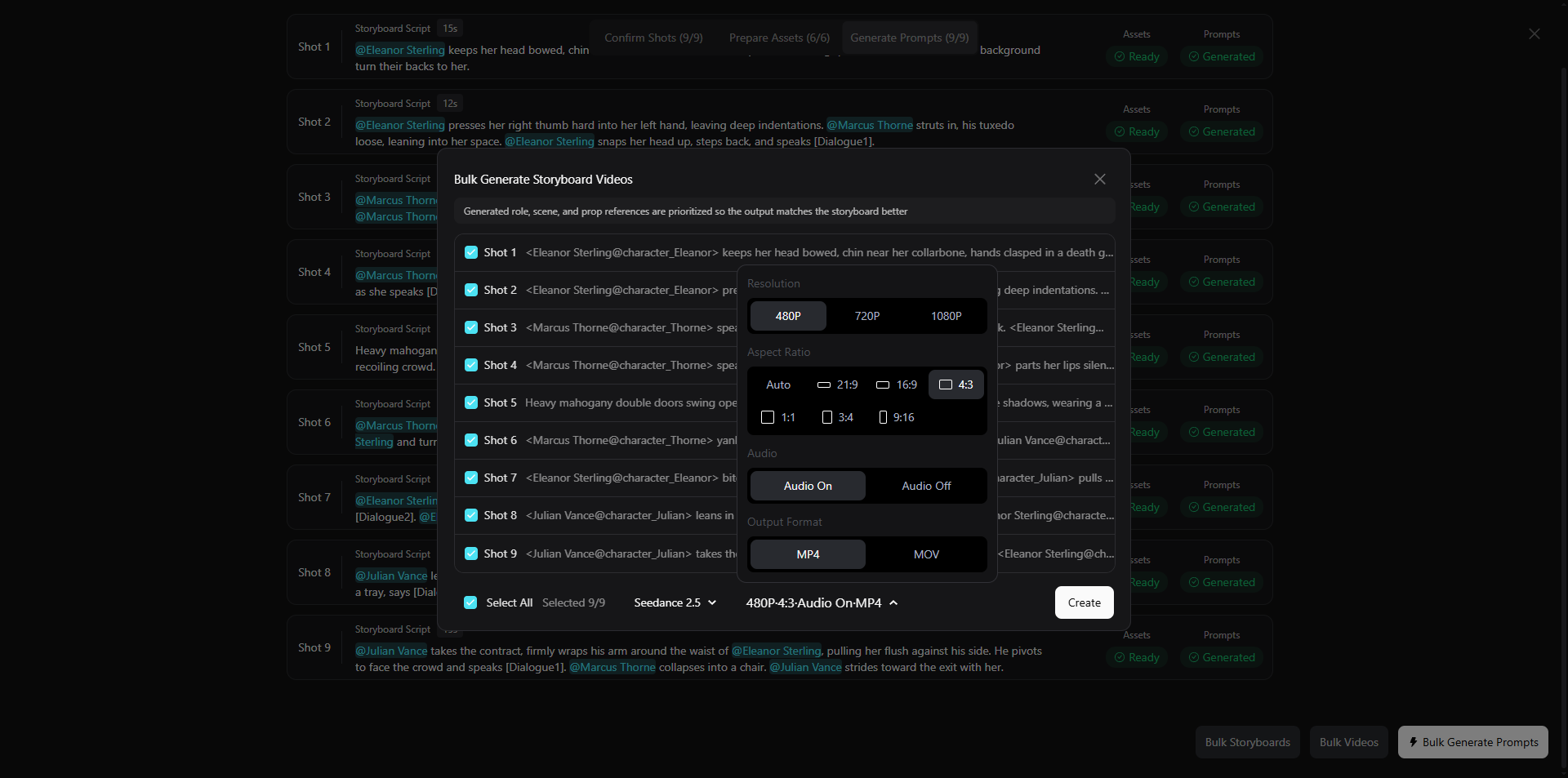
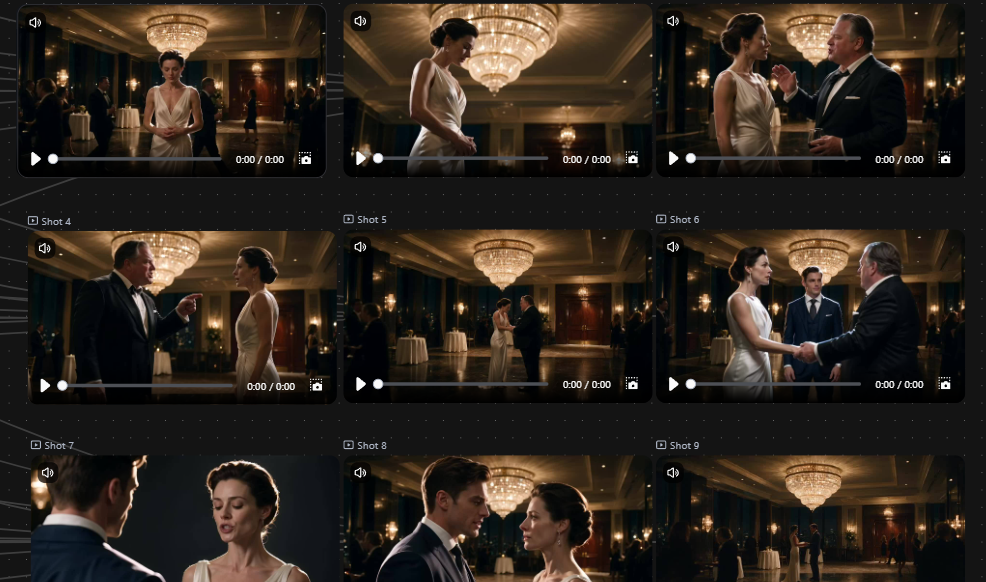
- Generate videos.
Batch-generate videos from the confirmed shots and prompts.
You can view the complete canvas workflow template here:
Pixmax is strongest when the storyboard is meant to become actual video: episodic short dramas, commercials, product explainers, and any project where script breakdown, asset consistency, prompts, and video generation need to stay connected. For a single static pitch board, it may be more workflow than you need; for repeatable video production, it reduces the handoff work between planning and generation.
Method 2: Dedicated Script-to-Storyboard AI Tools
A dedicated tool is software built to parse screenplays and briefs into structured storyboard frames, supporting Final Draft, Fountain, PDF, or plain text and exporting boards for review.
How to use it:
- Upload or paste your script — PDF, DOCX, Fountain, or plain text.
- Let the tool break it into scenes and draft a shot list with camera angles, blocking, and props.
- Review the board scene by scene; regenerate or edit single frames instead of restarting.
- Export for client sign-off or hand off as a production shot list.
Tools like Boords, StoryBirdie, and Storyflow differ mainly in how deeply they analyze the screenplay — some flag continuity errors and generate camera-ready shot lists before producing any images. Results improve significantly when you start with a properly formatted screenplay rather than a loose paragraph.
Method 3: LLM-First Workflow: ChatGPT as Your Preproduction Assistant
This method uses ChatGPT or Claude as a structured preproduction assistant: prompt it to break the script into beats, then into a shot-by-shot plan with framing and transitions — and optionally write the visual prompts you paste into an image tool.
A prompt pattern that works: "Act as a preproduction assistant. Break this script into a storyboard planning table with columns for scene number, dialogue, visual action, shot type, framing, camera move, and editor notes. Then convert each approved shot into a 30–60 word visual prompt with consistent character descriptions." Review the plan against production limits (gear, locations, platform aspect ratio) and treat the output as a handoff document.
The limitation is structural: the LLM produces text, so character appearance and wardrobe drift unless you copy one master description into every prompt. Creators use exactly this pattern — a "writer's room" step for shot-by-shot prompts, then dedicated tools for visuals — and results depend on reusing the same character and location language across all prompts.
Method 4: AI Image Generators + Character Reference Sheets
Use Midjourney, DALL·E, or Stable Diffusion with a deliberate consistency setup: build a canonical reference for every character, location, and style before generating panels.
How to set it up:
- Generate 10–15 images per character and pick one canonical portrait; do the same for locations.
- Write one master description per character and reuse it verbatim in every prompt.
- Supply the reference image alongside each prompt — "this is the character — now show them in this new pose."
- Keep a single style tag across panels (e.g., "cinematic photorealism, 35mm film grain") and lock wardrobe early.
- Generate similar shot types together and compare panels against previous frames as you go.
This works well for one-off scenes on a budget. Expect degradation at extreme angles, major pose changes, and multi-character frames — the hardest cases for every model.
Method 5: 3D Pre-Visualization for Shot-Level Control
3D pre-visualization is the method for the shots AI gets wrong: multi-character blocking, camera framing, and spatial relationships. Instead of hoping a prompt describes the scene, you build it — then export the camera view as a reference for generation. Pixmax 3D Stage does exactly this: add characters, props, and backgrounds to a 3D scene, drag characters to control position and depth, set virtual cameras with FOV and angle, and export the active camera as a reference that feeds AI video generation.
How to use it:
- Build the scene: add backgrounds, props, and characters matching the script's locations.
- Block characters: set position, pose, direction, and interaction so multi-person shots read clearly.
- Set cameras: create each shot and confirm framing, focal length, and composition.
- Export references: send the camera view into your AI video workflow as precise visual direction.
Where prompt-only generation produces unpredictable blocking, overlapping characters, and scenes that drift between shots, this method locks the camera plan before any frame is generated — ideal for AI short dramas needing locked sets across episodes, brand commercials with exact product placement, and film storyboards for crew review. The trade-off is staging effort: each shot takes more upfront work, but you stop paying in regeneration cycles.
Method 6: Hybrid: AI Draft + Manual Polish
The hybrid method treats AI as the first draft and the human as the finisher: generate the board, then refine by hand — reordering frames, sketching over panels, swapping references, and rewriting direction notes.
Start with a script-native tool or LLM breakdown to get a full board instead of a blank page, then spend effort where it matters: correcting weak frames, tightening pacing, and adding the craft notes a client or crew needs. Designers experimenting with AI storyboarding tools describe the same loop — anchor the AI in your own references, iterate on variations, refine — as the way to keep your original creative vision. This is the most reliable quality per hour; the cost is manual time.
How to Choose a Script to Storyboard AI Tool
Check five criteria against your project:
- Character and location consistency engine. Does it store profiles once and reuse them, or re-roll each frame from a prompt?
- Shot logic, not just images. Does it output camera angles and shot types, and can you edit the shot list inline?
- Script format support. Final Draft, Fountain, and PDF are the baselines; check yours first.
- Editability and export. Can you regenerate one weak frame instead of rebuilding the board, and export to PDF or PowerPoint?
- Handoff to production. If the board will become AI video, the shortest path is a platform where pre-production and production live in the same environment.
Common Mistakes to Avoid
- Vague shot descriptions. Describe subject, action, framing, lighting, and mood in 30–60 words.
- Skipping the character sheet. A few minutes of reference setup saves hours of continuity repair.
- Using pronouns instead of names. Profile-based tools connect to names — "Jenny and Don by the bus" beats "the duo."
- Changing style mid-project. Realistic in act one, anime in act two resets identity mapping.
- Over-storyboarding dialogue. One establishing shot, coverage, and a reaction close-up — not a panel per line.
- Treating the first output as final. Generate variations, pick the strongest, iterate.
- Ignoring the destination platform. A YouTube essay board is not automatically a good TikTok board.
FAQ
Can AI turn a script into a storyboard?
Yes. Script to storyboard AI parses your script into scenes and generates visual frames with shot notes in minutes. Dedicated tools handle screenplays and briefs; LLMs like ChatGPT handle the breakdown but need a separate image generator for frames.
How long does it take to go from script to storyboard with AI?
Most scripts produce a first board in minutes to under 20 minutes including review. Hand-drawing the same board takes an afternoon to several days.
Does ChatGPT work for storyboarding?
For planning, yes — it is excellent at beat breakdowns, shot lists, and visual prompts. It cannot produce visually consistent frames on its own, so treat it as a preproduction assistant and move the plan into a board or image tool.
How do AI tools keep characters consistent across storyboard frames?
By locking identity at the profile level: a canonical reference image or structured character profile is created once and reused across panels. Multi-character scenes and extreme angles remain the hardest cases for every tool.
Do I need drawing skills to storyboard with AI?
No. All six methods work without drawing ability. The skill that still matters is directing: judging shot logic, pacing, and continuity.
Can a storyboard from an AI tool be used for AI video generation?
Yes, and it is increasingly the point. Platforms that plan and generate in the same environment — like Pixmax — keep characters and scenes consistent from the board into the final clips. Standalone boards can also be exported as references for image-to-video tools.
Conclusion
Script to storyboard AI compresses days of pre-production into minutes, but the tool class matters more than the model. Use dedicated tools for client-ready boards, LLMs for lightweight planning, image generators with reference sheets for one-off scenes, a full-pipeline agent like Pixmax AI Video Agent when the board must become finished video, and 3D pre-visualization when blocking decides whether a shot works. In every case, treat the AI board as a draft and yourself as the director. Thanks for reading.