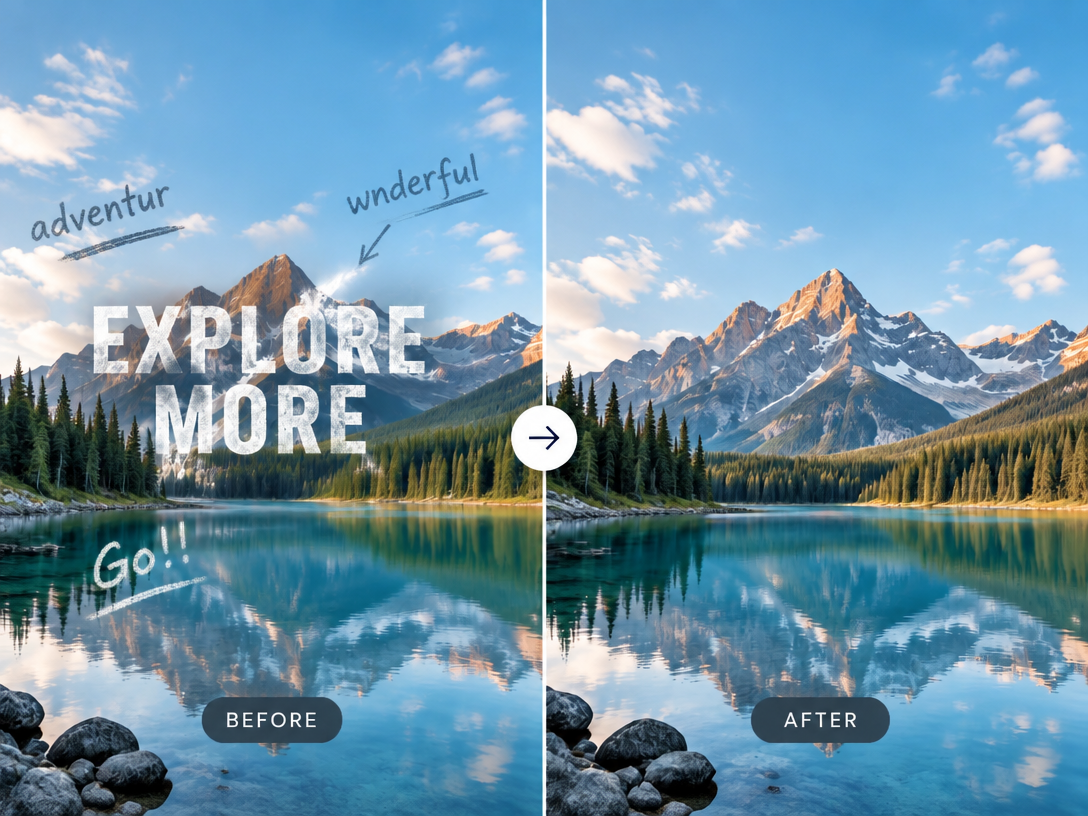


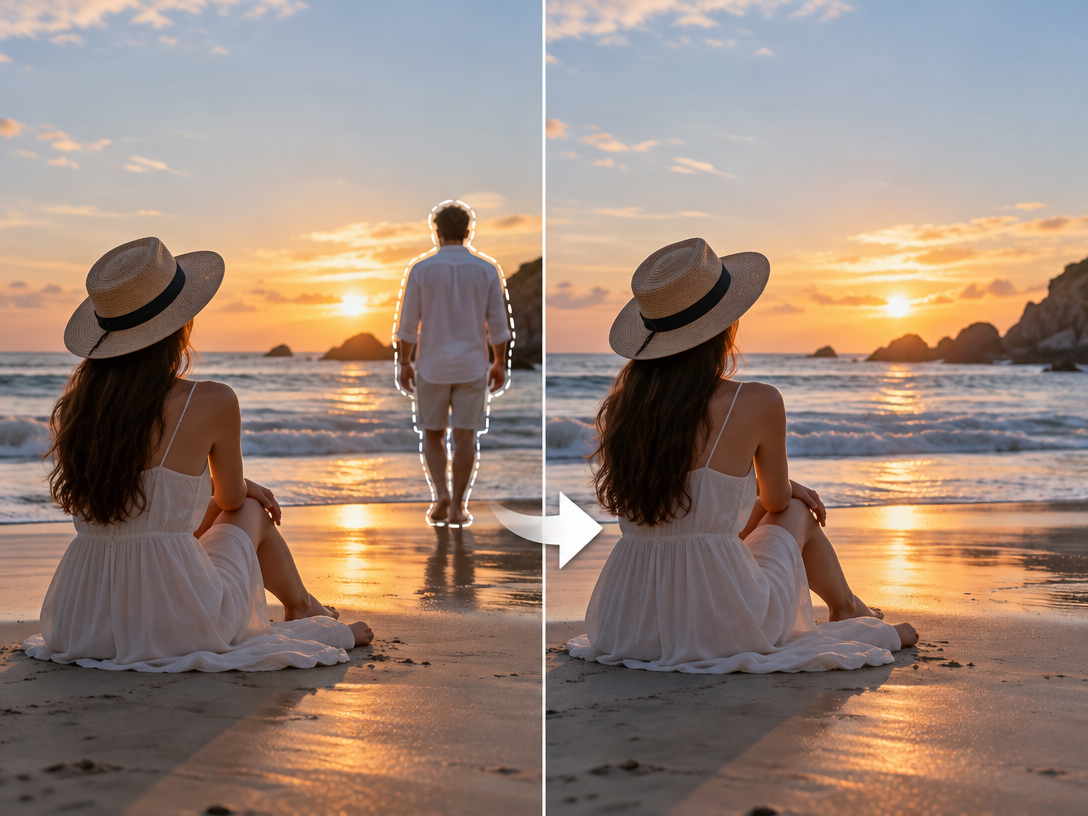
Quick Answer
You remove a person from a photo with AI inpainting: paint over the person and the model rebuilds the background that was behind them. Nothing is deleted — the space gets filled with something invented, and the quality of that invention is the whole job.
- Fastest free route: Apple Clean Up requires supported Apple hardware. Google Photos requires access to a Google account, and feature availability may vary by device and region.
- Hardest case, a person overlapping your subject: \Pixmax\, where the model reconstructs the background and nearby visible details that were covered by the person. And a second model gives you a comparison.
- Any device, no install: browser erasers work, but free tiers usually cap export size.
What decides whether it looks real is not the tool. It is background complexity, overlap, and whether you removed the shadow.
Before You Start: What Actually Decides the Result
- Background complexity, not brand, decides quality. Flat sky, plain walls and open water blend back cleanly. Dense crowds, historic facades, repeating railings and fine foliage do not — builders of AI people-removal tools report existing erasers "leave blurry patches or weird artifacts" on architecture and detailed landscapes.
- Distance decides difficulty. A stranger 12 metres away is cleanup. A person overlapping your subject is reconstruction, and that is the hard case.
- Residue decides believability. A body leaves a shadow, sometimes a reflection, and colour spill on whoever stands beside it. Miss one and the edit still reads as fake.
- Resolution decides whether you can fix it later. Judge every result at 100% zoom, never in a feed thumbnail.
Best Tool to Remove People from Photos: Match the Method to the Frame
| Method | Best for | Feasibility — why | Main limit |
|---|---|---|---|
| Apple Clean Up | iPhone 16 / 15 Pro, Mac M1+ | High — on-device, one tap, no upload | Hardware-gated; faces can go pixelated |
| Google Photos Magic Eraser | Android and Pixel | High — free, built into the app, official steps | Google: "may not work on all image elements"; not on web |
| Browser AI erasers | One-off jobs, any device | High — no install, no account, ~30 seconds | Export caps, possible watermark, thin undo |
| Pixmax (multi-model) | Shadows, overlaps, batches | High — region-scoped edits plus a second model to compare | Credit-based; not a one-click eraser |
| Photoshop | Partial occlusion, art direction | Medium — per-pixel control, but no reference exists for what was hidden | Skill and time cost |
Method 1: Apple Clean Up — Fastest When Your Hardware Qualifies
Clean Up is Apple's built-in object remover, and the shortest path on supported hardware.
Check eligibility first: iPhone 16 models, iPhone 15 Pro or 15 Pro Max, any iPad with A17 Pro or M1 and later, or Mac with M1 and later, on iOS 18.1, iPadOS 18.1 or macOS Sequoia 15.1. Full list on Apple's Clean Up requirements page.
- Photos → select the image → Edit → Clean Up.
- Let Apple Intelligence suggest removables, or circle and brush the person yourself.
- Drag the Size slider to match the subject, then paint the whole person.
- Review at full size, tap Done. Undo and Reset step back out.
Watch out: Apple warns that brushing over a face can leave it blurred with a pixelated effect. Duplicate the photo first.
Method 2: Google Photos Magic Eraser — the Free Android Route
Magic Eraser is Google Photos' in-app remover, and needs no upgrade on supported devices.
- Open the photo in Google Photos.
- Edit → Actions → Magic Eraser. On Android, tap Edit → Search and type the tool name instead.
- Tap, draw a circle around, or brush the person.
- Tap Erase. Use Refine selection to add or subtract area, then Done.
Limits: Google states Magic Eraser "may not work on all image elements," and Google Photos supports editing on computer, but the availability of Magic Eraser and related AI tools can vary by device, account, and platform. Official steps: Google Photos editing help.
Method 3: Pixmax AI — Best AI App to Remove People from Photos
Pixmax is an all-in-one AI creation platform that brings multiple image models into one workspace. It can remove unwanted people and other distracting details while keeping the remaining scene clean and natural. No advanced editing skills are required, so beginners can get started quickly.
After registering, you receive free credits to try the tool. You can also earn additional credits through the referral program.
How to Remove People from a Photo with Pixmax
- Upload or paste the photo you want to edit.
- Describe what should be removed and what must remain unchanged. Mention the background that should fill the removed area to guide the result.
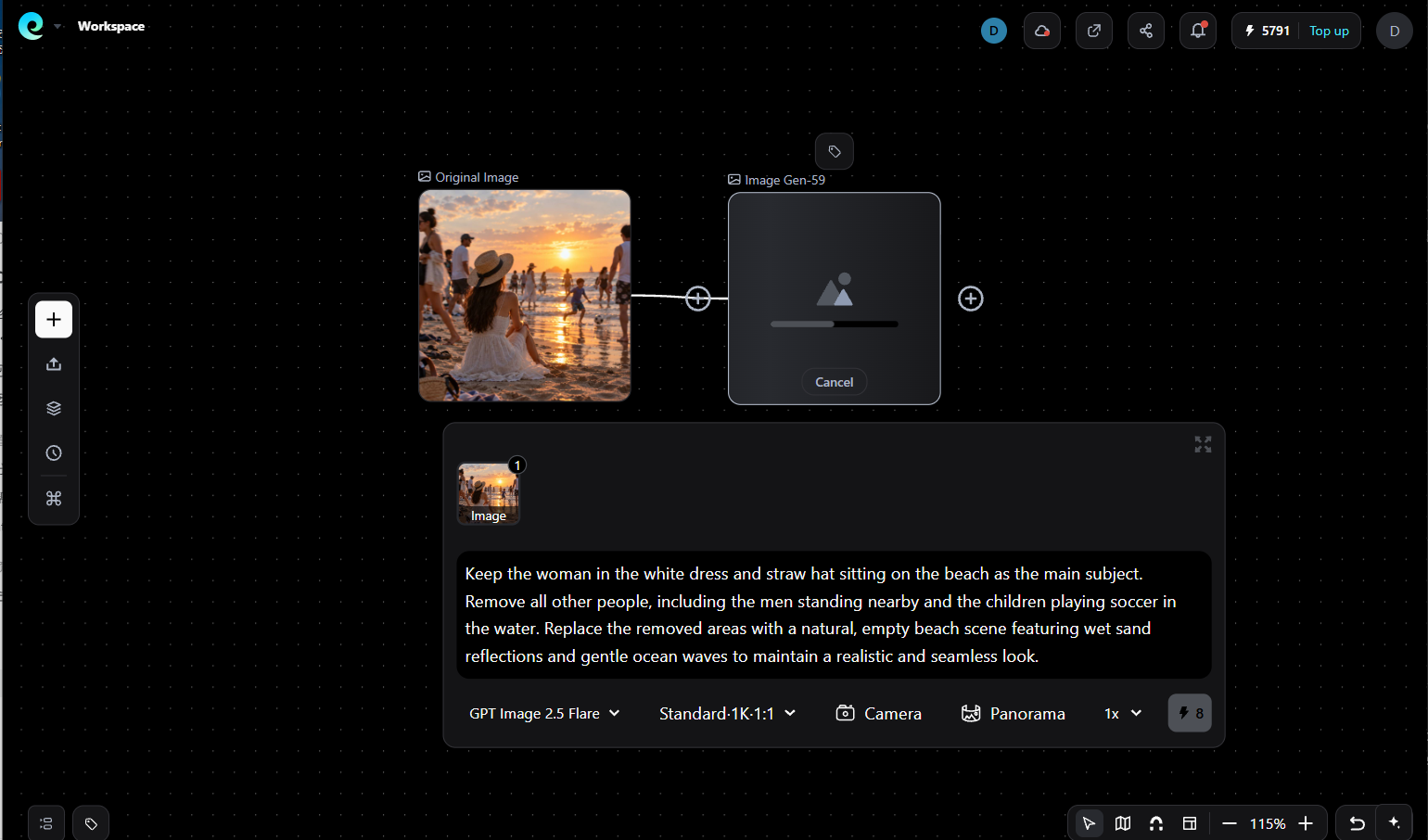
Use this prompt as a starting point:
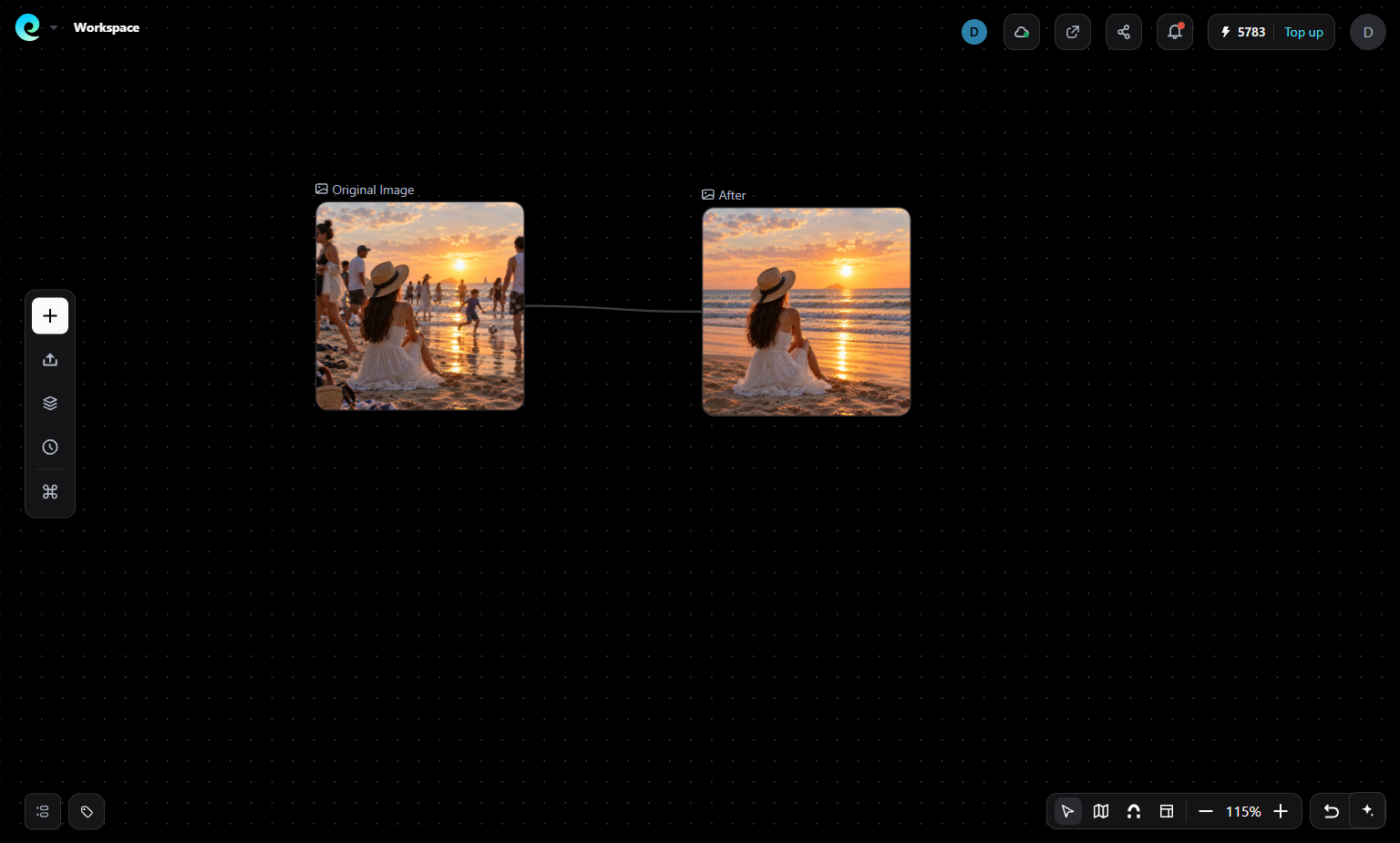
Keep the woman in the white dress and straw hat sitting on the beach as the main subject. Remove all other people, including the men standing nearby and the children playing soccer in the water. Replace the removed areas with a natural, empty beach scene featuring wet sand reflections and gentle ocean waves to maintain a realistic and seamless look.Pixmax can also handle other image-editing tasks beyond removing unwanted people. Depending on the workflow, you can adjust image quality, resolution, and aspect ratio after generating the result.
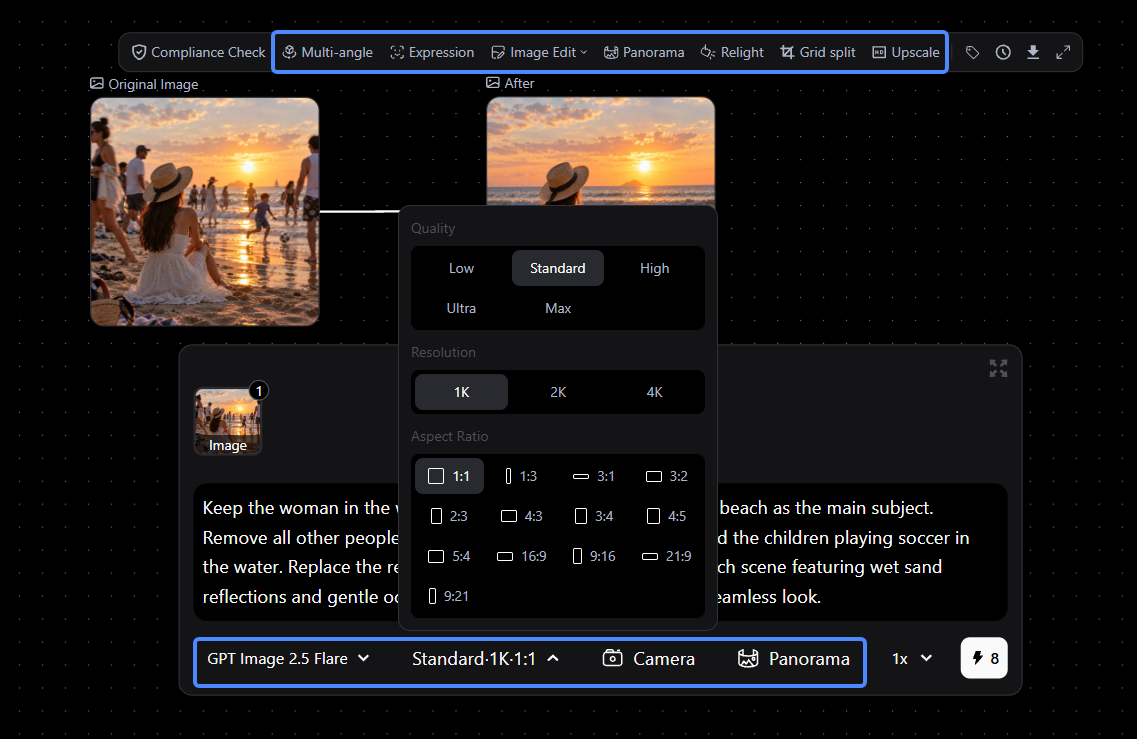
- Generate the image and review it at full size. In this example, the unwanted people are removed in under a minute, leaving a clean beach scene with the original subject preserved.
- Compare the edited image with the original before downloading it. Check the remaining subjects, shadows, reflections, and edges for any visible artifacts.
Method 4: Browser AI Erasers — Any Device, No Install
Browser erasers run the same paint-and-Generate loop as a hosted web app, so nothing is installed or signed up for.
- Upload the image.
- Large brush for distant subjects, small one for hair and edges. Paint slightly wider than the person — Cleanup.pictures advises covering more than the target, shadows included.
- Generate, inspect at 100% zoom, download.
One real limit: r/StableDiffusion inpainting threads repeatedly report that prompting the removal ("erase this person") swaps in a different object instead. Describe the background you want — "empty cobblestone pavement, same daylight" — not the subject you want gone.
The Same Workflow Erases Objects, Not Just People
Paint-based inpainting does not care whether the target is a person or a thing. The identical flow is how you erase something on a picture: power lines, a bin, a bystander, a watermark, a date stamp. Two differences matter — objects cast more regular shadows (railings, cables) and leave more regular reflections in glass, so follow the structure with the brush instead of covering only the solid body.
Method 5: Photoshop\ — Only When AI Cannot Rebuild the Overlap
Clone Stamp and Content-Aware Fill are the manual route, and the only one giving per-pixel control.
- Select the person with a quick-selection or pen tool.
- Content-Aware Fill the hole; sample a clean patch of the same wall, floor or sky with Clone Stamp.
- Paint the contact shadow back by hand.
Use it when one person is largely hidden behind another, or when spill and shadow need hand cleanup. Be honest about the cost. When a person overlaps your subject and more than a third is hidden, a tighter crop is the better answer — free, instant, honest.
If the First Result Is Wrong: How to Re-run It
Generative fill is probabilistic. A second pass with slightly different coverage usually cleans up what the first left behind.
- Zoom to 100% and name the exact defect: smudge, hard seam, or a survivor's missing limb.
- Re-brush only the defect, a little wider than the seam — never repaint the whole person, or you invite a fresh invention.
- Re-generate. If the same artifact repeats, change the prompt: describe the background differently, or add a texture term such as "fine brick texture, even lighting".
- Compare full frames against the original before accepting.
- Stop after three passes and crop. Past that, inpainting adds more invention, not less.
5 Checks Before You Publish
- Compare the whole frame, not just the hole. Local edits can rewrite neighbours; inpainting communities report objects swapped in or out of a masked region.
- One person per pass. A whole crowd in one pass leaves the model too little context.
- Kill the orphan shadow. Where two people touched, the dark contact line survives and points at nobody.
- Check colour spill. A warm shirt tints your subject's cheek; remove the shirt, the tint stays.
- Check grain. The rebuilt patch is cleaner than the rest of the frame. On an indoor phone shot, unnaturally smooth wall is the tell.
Before You Publish: Consent and Context
- Your photo, personal use, incidental stranger: fine. Ordinary cleanup.
- A shared photo you publish: ask first. Removing someone from a group shot has a social cost.
- For commercial, journalistic, property, identity, court, or insurance images, keep the original, verify your rights, and disclose material edits when the change could affect how the image is interpreted. Keep the original, and disclose the edit if the image will be published.
- Stock or client photos: you need modification rights, not just a copy.
FAQs
What is the best app to remove people from photos?
Apple Clean Up on supported hardware, or Google Photos Magic Eraser. For shadows, overlaps and batches, a multi-model workspace like Pixmax.
How do I remove a person from a photo for free?
Use Apple Clean Up, Google Photos Magic Eraser, or any browser eraser. Free tiers usually cap export resolution or daily edits; Pixmax starts with free credits and no card.
Will removing a person leave a blank spot?
Most inpainting tools fill the selected area, but the result can contain visible seams, repeated textures, or unrealistic details.
How do I remove someone from a group photo without ruining the others?
Use a small brush, paint only the person you want gone, and name the people who stay in the prompt. One person per pass.
How do I erase something on a picture without Photoshop?
Brush over the object — including its shadow and any reflection — and let inpainting rebuild the background. Any browser eraser does this in under a minute.
Can I remove a person and an object in the same photo?
Yes, one at a time. Removing several items in a single pass gives the model too little context and the fill degrades.
Is it legal to remove someone from a photo?
Usually, for your own photo and personal use. Risk rises with commercial use, recognisable subjects, private settings, and edits that change what the image claims happened.