

Quick Answer: Kling Motion Control transfers a character image onto the exact movement and expressions of a reference video. The dedicated mode runs on Kling 2.6 and Kling 3.0; Kling O1 handles adjacent work (character replacement on existing footage). Kling 3.0 offers the best facial consistency via Element Binding and up to 30-second output in video-orientation mode. Test it free with credits on kling.ai, or access Kling 2.6, O1, and 3.0 together on Pixmax.
What Is Kling Motion Control?
Kling Motion Control is image-to-video motion transfer: the reference video is the motion blueprint, the character image is the identity. Kling extracts skeletal data, facial expressions, and timing from the reference, then maps them onto your character frame by frame.
It is built on a DiT-based architecture (see Kling's technical report on arXiv) that separates body, face, and hand motion before fusing them — handling complex choreography and micro-expressions without the face drift of earlier tools.
Kling 2.6 vs Kling 3.0 vs Kling O1 for Motion Work
The dedicated Motion Control mode exists on Kling 2.6 and Kling 3.0 .
Kling O1 is a video-editing model with reference-video (transform) workflows — ideal for swapping an actor inside existing footage while keeping its motion, background, and framing. It complements Motion Control but is not the same feature.
| Feature | Kling 2.6 | Kling 3.0 |
|---|---|---|
| Element Binding (multi-angle face lock) | No | Yes — frontal image + up to 4 angle refs, or a short video |
| Face consistency | Single-image anchor | Multi-angle anchoring via Elements |
| Audio | Synchronized audio + lip sync | Native lip-sync in 5 languages (CN, EN, JA, KO, ES) |
| Reference clip | 3–30 seconds | 3–30 seconds |
| Output cap | Matches reference | 10s in image-orientation / up to 30s in video-orientation |
| Standard (720p) | 5 credits/s | 9 credits/s |
| Professional (1080p) | 8 credits/s | 12 credits/s |
Choose the model by movement. Kling 2.6 is fine for a frontal character doing moderate-speed action — and cheapest to test. Kling 3.0's Element Binding holds the face through head turns and occlusion, exactly where 2.6's single reference drifts.
Both accept one character image and one reference video. In image-orientation mode the character keeps the photo's framing (10s cap on 3.0); in video-orientation mode it follows the reference's direction and camera (up to 30s on 3.0). Note: Element Binding works only when character orientation matches the video.
When to use Kling O1 (also on Pixmax): to replace a character inside existing footage — same background, framing, and movement. Route tasks per model: O1 for editing clips, 2.6 for cheap tests, 3.0 for final character-driven renders.
How Much Does Kling Motion Control Cost?
Kling bills credits per second of output, rounded up:
- Kling 3.0: 9 credits/s Standard (720p), 12 credits/s Professional (1080p)
- Kling 2.6: 5 credits/s Standard, 8 credits/s Professional
A 5-second Standard clip costs 45 credits on 3.0, 25 on 2.6. Consumer plans run from a free tier (limited daily credits, no commercial use) to paid subscriptions ($6.99–$127.99/month).
Third-Party Access to Kling Motion Control
| Platform | Kling 3.0 Motion Control 720p | Kling 3.0 Motion Control 1080p | Pricing model | Notes |
|---|---|---|---|---|
| Official Kling API | $0.126/s | $0.168/s | Prepaid unit packages (1 unit = $0.14) | Per kling.ai/dev/pricing; motion-control tier |
| AtlasCloud | $0.071/s | $0.095/s | Pay-as-you-go, no subscription | Promo −15% on Kling 3.0 I2V Std/Pro; reverts to $0.084/$0.112 |
| WaveSpeed AI | $0.126/s | $0.168/s | Per-run, per-second | Motion-control endpoints $0.63 (std) / $0.84 (pro) per run |
The Unlimited Question
No platform offers truly unlimited Kling Motion Control — every generation is metered. Two ways to stretch access: free daily credits on kling.ai (1–2 short test clips/day) and platform signup credits like Pixmax's no-card free credits, which let you compare how each model handles your reference before you spend.
Beginner Guide: How to Use Kling Motion Control on Pixmax
Pixmax is a genuinely beginner-friendly platform to work with — even a simple prompt is enough to get great results with Kling Motion Control. Here's a step-by-step walkthrough.
Step 1: Prepare your inputs
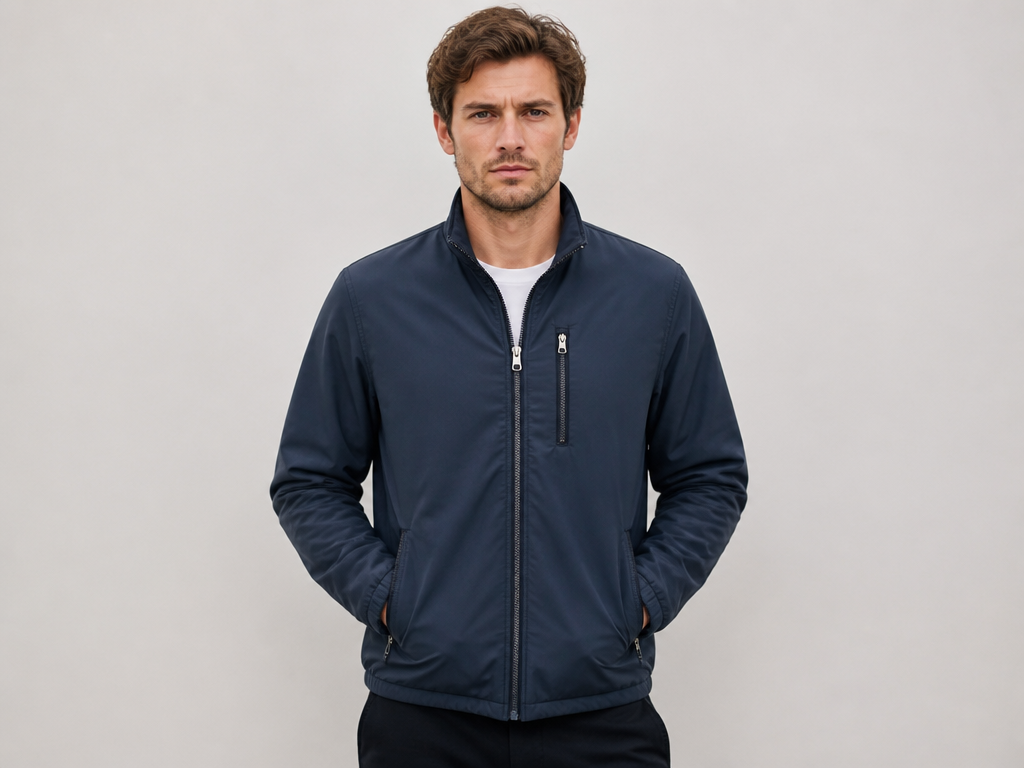
Start with a character prompt, for example: "High-res photo of a male model facing forward, wearing the jacket." This generates your character asset, shown below:
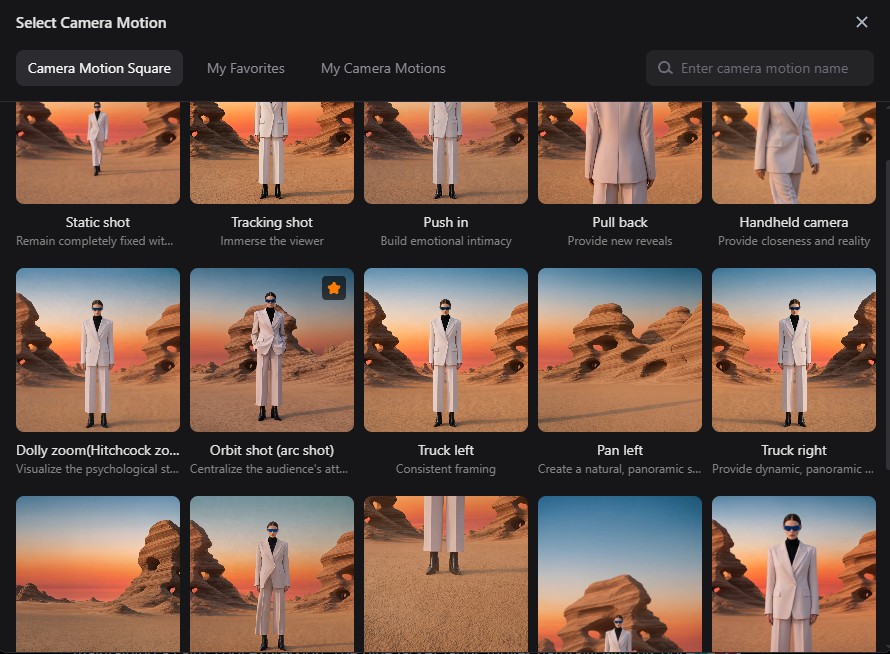
Step 2: Choose a camera motion to generate a reference video
Under the Kling V3 model selection, Pixmax offers a Camera Motion option with a range of professional camera movements to cover most common use cases. For this example, we selected an orbit shot (prompt shown in the second screenshot below — feel free to reuse it). After a short wait, the reference motion video is generated.
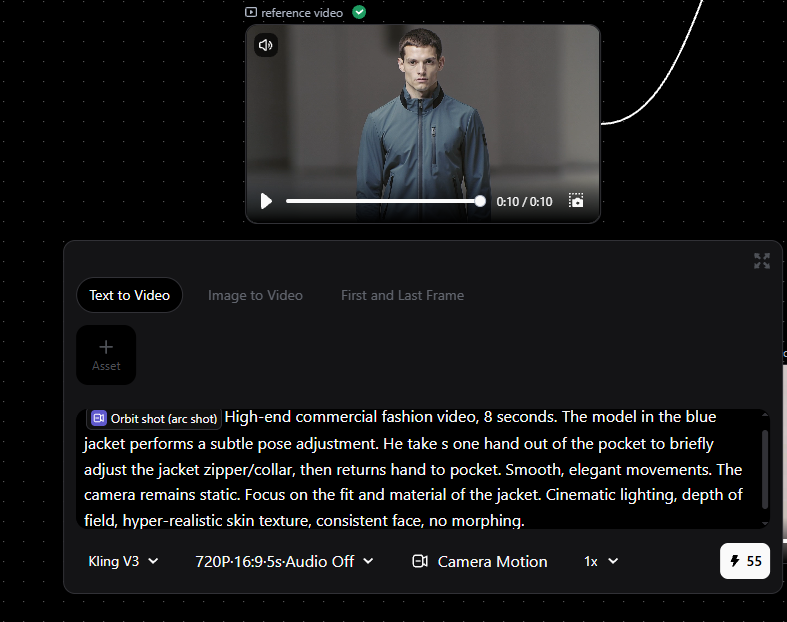
Step 3: Generate the final video with Kling Motion Control
Now reference both the character asset and the camera motion video from the previous steps to generate your final Kling Motion Control video. At this stage, you can go into more detail with your prompt — the more clearly you describe what you want, the less touch-up and revision the output will need.
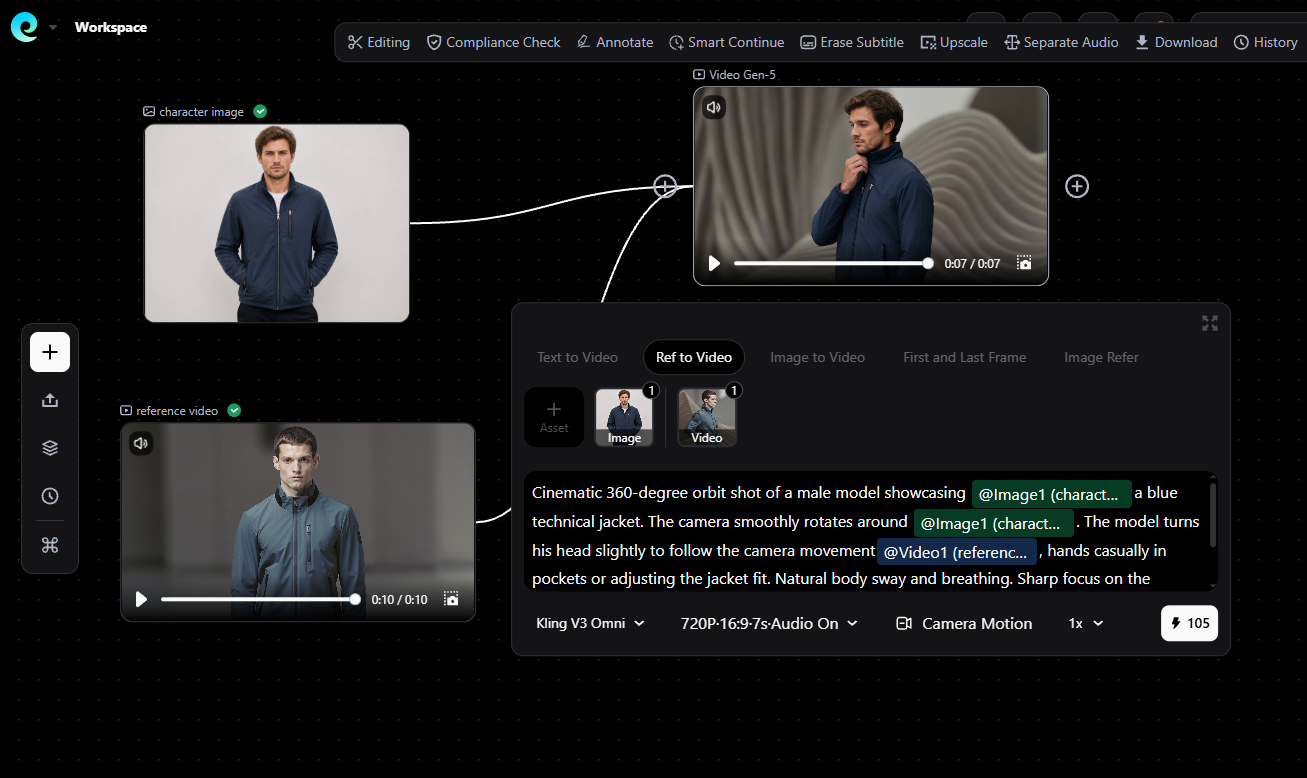
The final generated video is shown below. You can also constrain the background in your prompt depending on how the video will be used. For e-commerce product scenarios, for instance, you can post-process the video to swap the background to plain white.
Kling Motion Control vs Runway Motion Brush vs Pika Effects
| Kling Motion Control | Runway Motion Brush | Pika Effects | |
|---|---|---|---|
| Input | Reference video + character image | Vectors painted on image regions | Text effects on image regions |
| Motion fidelity | Frame-accurate from real footage | Region-specific directional | Stylized (melt, explode) |
| Face consistency | Strong (3.0 + Element Binding) | Moderate | Limited |
| Max output | 30s (video orientation) | 10 seconds | 4 seconds |
| Best for | Realistic human motion, dance, acting | Hair, fabric, water | Creative/destructive effects |
If you need a performance matched precisely, Kling Motion Control is the strongest option; Motion Brush suits simple directional animation, and Pika Effects serves stylized VFX rather than motion transfer.
Pixmax vs Higgsfield: Which Platform for Kling Work?
| Pixmax | Higgsfield | |
|---|---|---|
| Kling models | 2.6, O1, 3.0 | 2.6, 3.0, O1, Turbo |
| Other models | Seedance, WAN, VEO 3.1, Hailuo, Vidu, PixVerse | Sora 2, VEO 3.1, Seedance, WAN |
| Unique tools | AI Video Agent, AI Cinematic Control | Cinema Studio (1,296 camera lenses), Soul ID |
| Credits | Purchased credits never expire | Monthly credits expire after 90 days |
| Free tier | Free credits, no card required | Diffuse app tier (~10 credits/day) |
Choose Pixmax for non-expiring credits, all three Kling models in one workspace, and the AI Video Agent pipeline. Choose Higgsfield for Cinema Studio's camera simulation or Sora 2 access.
Troubleshooting
- Face drifts on head turns. Most reported on 2.6. Fix: move to 3.0 and bind a multi-angle Element.
- Distorted teeth/mouth. Fix: front-facing image with visible teeth; avoid reference clips with exaggerated mouth moves.
- Background altered in video-orientation. Fix: switch to image-orientation to keep the photo's framing; use Kling O1's transform if you need the original footage's background exactly.
- Feet sliding or floating. Fix: name the floor material in the prompt (e.g., "polished marble floor") so Kling's physics anchors the character.
- Output shorter than reference. Fast/complex action gets cut to the valid segment (min 3s). Slow the reference; credits are non-refundable.
Tips for Better Results
- Match framing. A full-body reference needs a full-body character image.
- Test cheap on 2.6, final on 3.0. Lock prompts at 2.6's price, render keepers on 3.0.
- Start at Standard (720p). Upgrade to Professional only for delivery.
- Keep the reference steady. Moderate speed, single subject, continuous shot.
- Lock identity first. Bind a facial Element before generating — the single best fix for face drift.
Frequently Asked Questions
Can I use Kling Motion Control for free?
Partially — limited daily credits on kling.ai, free signup credits on Pixmax. No free path to production-volume commercial use.
Is there a difference between Kling Motion Control 2.6 and 3.0?
Same transfer mechanism; 3.0 adds Element Binding, 5-language lip-sync, and better long/complex motion, at 9 vs 5 credits/s Standard.
Can Kling Motion Control work with anime or 3D characters?
Works if the target is humanoid; extreme differences degrade results.
Does Kling Motion Control support text-to-video?
No — Motion Control is image-to-video only.
What are the orientation modes?
"Matches Video" follows the reference's direction/camera; "Matches Image" keeps the photo's framing (10s cap on 3.0).
Can I use audio and lip-sync with Kling Motion Control?
2.6 generates synchronized audio; 3.0 adds native multilingual lip-sync; O1 has no native audio in reference workflows.
Is Pixmax or Higgsfield better for Kling Motion Control?
The underlying Kling models are identical; match the platform to your pipeline — Pixmax for non-expiring credits and all three Kling models, Higgsfield for Sora 2 and Cinema Studio.